Read the price ladder
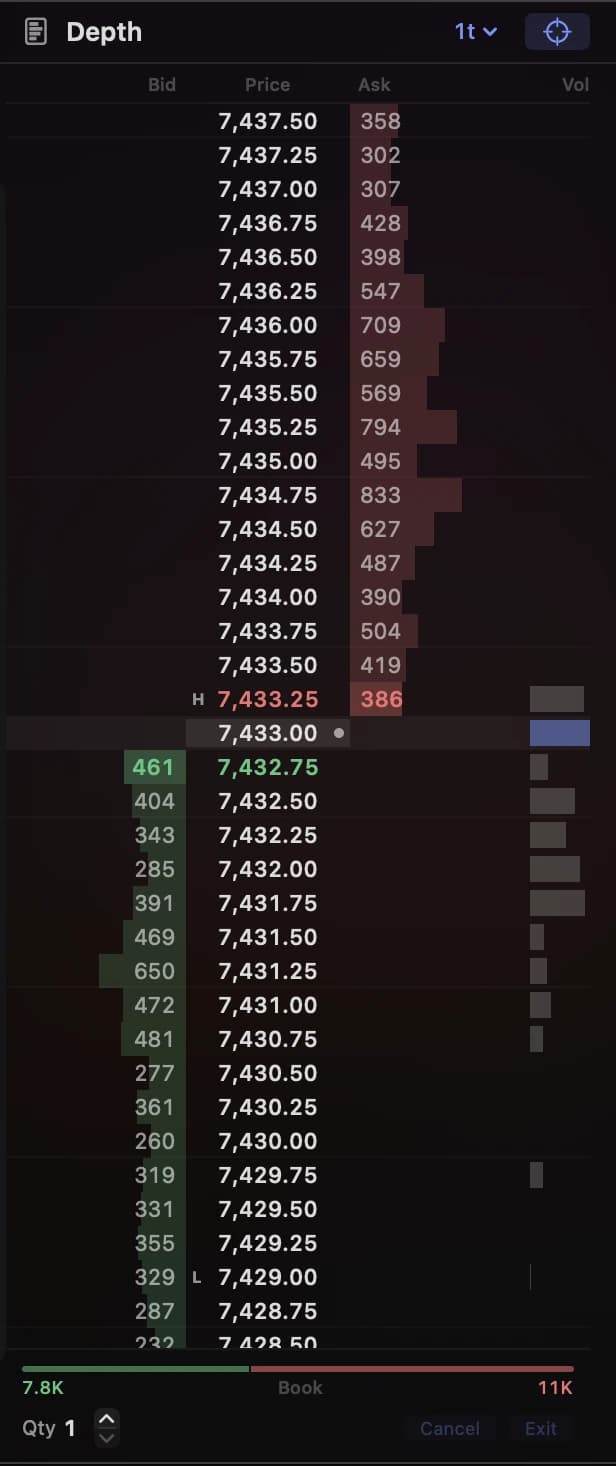
A depth-of-market display, or DOM, shows resting buy and sell orders at each price. Orders can change or be canceled at any time. The volume column shows trades that have already happened.
- Price
- Prices run down the center of the ladder. Check the contract, expiry, and price increment before placing an order.
- Bid and ask
- Resting buy orders appear on the bid side; sell orders appear on the ask side. Your feed may group orders by price or provide individual order detail. CME explains the difference.
- Session volume
- Lightwick shows traded volume beside the bid and ask columns, so you can compare completed trades with the orders still in the book.
- Order controls
- Working orders and quantity controls sit alongside the ladder. Check the account and order quantity before using them.
Set up market depth
To see multiple price levels, you need a market-data subscription that includes depth. Check this with your firm or broker. A subscription that updates the chart or best bid and ask may not include the rest of the book.
When comparing screens, use the same contract and expiry. Check for delayed data and price grouping: a ladder that combines several prices into one row will look different from one that shows every tick.
For Lightwick’s Rithmic connection, follow the Mac setup guide for agreements, credentials, and system settings. For a Topstep account, see TopstepX on Mac. Check support for your account with your firm.
Practice placing and canceling orders
Start in a simulated account while you learn the controls. Check your application’s instructions for the exact clicks and supported order types.
- Check the account and contract. Check the account ID, simulation status, expiry, and quantity. Moving live prices don’t tell you whether an account is simulated.
- Choose an order type. A limit order sets a price limit and may remain unfilled. Stop orders trigger under specified conditions. See CME’s order-type guide for the differences.
- Place a simulated order. Check that it has been accepted, then watch for a working, filled, or rejected status. Review the order record as well as the marker on the ladder.
- Cancel a working order. Wait for confirmation, then check orders and positions. An order can fill while the cancellation is being processed.
- Check the resulting position. Review fills and any open position. Canceling an unfilled order does not close a position you already hold.
If something looks wrong
The price moves, but depth is empty.
Check that your subscription includes market depth for this contract and that depth is enabled in the app. The feed may be supplying only the best bid and ask.
Two ladders show different quantities.
Check the contract, expiry, delay status, and price grouping on both screens. They may use different feeds or show different numbers of levels.
An order was rejected or its state is unclear.
Read the error and check current orders and positions before trying again. If you contact support, include the time, instrument, app version, and error message. Remove private account details from screenshots.
To research a strategy based on the ladder, you’ll need suitable historical order-flow data. Lightwick’s bar-based research tools have data limits to be aware of.
Further reading
Try Lightwick on your Mac.
Try Lightwick free during beta. No credit card required.
Join the free beta